Create backups of valuable files regularly and ensure the safety of your files.
Use Exiland Backup to prevent critical data loss from viruses, PC breakdowns, unwanted changes, HDD crashes, and other threats.
In case of loss of files, simply restore them from a backup.
The program is translated into the following languages:
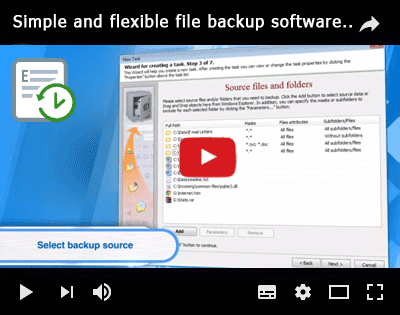
Learning to use Exiland Backup takes only 2 minutes
When creating Exiland Backup, we focused on the simplicity of the interface and the speed of copying files.
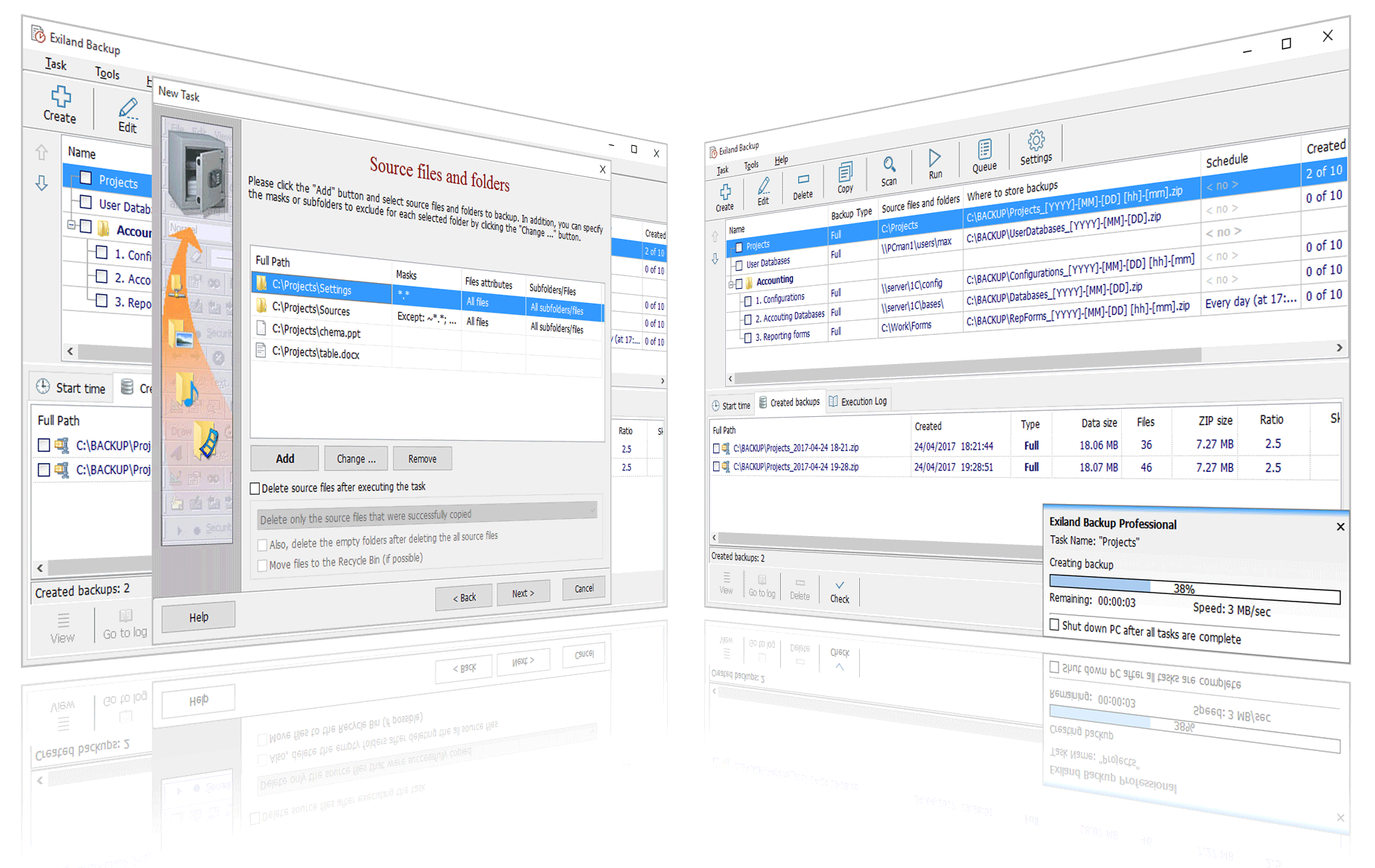
All you have to do is to create a task by specifying the source folders that you want to copy, the schedule for running the task, and the folder where to save the backups.
Everything else the program will do for you!
In addition, you can copy the source files with the specified compression level to a ZIP, 7-Zip archive, encrypt them, split the archives into volumes, and duplicate backups to any locations for greater security: Local Network, NAS storages, FTP, SSH servers (UNIX), synchronize files and much more.
Exiland Backup runs on all Windows and Windows Server operating systems.
Already more than 10,000 users and companies
successfully use Exiland Backup to protect their data!
 |
Standard |
Advanced functionality | |
$35
- Supports 4 types of backup
- File synchronization (update backup)
- FTP, SFTP (SSH) protocols support
- Automatically move files from one folder to another
- Multi-threaded copying
- Duplicates archives, deletes old backups
- ZIP, 7-Zip settings: compression level, encryption, protection by password
- Launches external applications
- Protection of archives against file-encrypting ransomware
- On-screen notifications and notifications by email
- Protection of the program by password
Unlimited time license (Lifetime license)!
Last Updated:
Version 6.7 -
 |
Professional |
Maximum functionality | |
$69
- Supports four backup types
- File synchronization (update backup) via network, FTP, SFTP (SSH)
- VSS (Volume Shadow Copy) for locked files such as Outlook *.ost, *.pst, and etc.
- Software works in background (as Windows service)
- Copy files from many computers in local network
- Automatically move files from one folder to another
- Ability connect to share using a specified account (login, password)
- Multi-threaded copying (in parallel)
- Launch external applications
- ZIP, 7-Zip settings: compression level, encryption, protection archives
- Protection of archives against file-encrypting ransomware
- Run tasks on specified conditions
- E-mail notification, on screen, and Windows event log
- Protection of the program by password
Unlimited time license (Lifetime license)!
Last Updated:
Version 6.7 -
Key features of Exiland Backup
Supports 4 backup types:
- full
- differential
- incremental
- file synchronization (update backup)
Backs up files automatically on schedule, on PC start, on connecting a USB device, from the Windows command line (.bat) or manually by clicking the "Run" button.
Fast compression in standard ZIP, 7-Zip formats, with AES-256 encryption, with optional splitting of large ZIP archives into multiple volumes, password protection.
Backs up files from any location and saves backups to:
- local / network drives
- removable USB disks
- external SSD, HDD
- SSH/FTP servers (UNIX)
- NAS servers
Full control over backup creation:
- detailed log
- indicator in Notification Area
- notifications by email
- on-screen notifications
Restores files from a backup. You can quickly restore the lost files to the specified folder or to their original location.
Latest news
October 15, 2023
Release of the new version of Exiland Backup 6.6. In the new version, we have added the ability to create connection profiles (FTP, SFTP (SSH), and SMTP). Thus, by changing the settings in one place, they will automatically change in all backup jobs where this connection is used. This makes it much easier to make changes to job settings, especially if there are a lot of backup jobs. Other innovations concern the logic of the program and interface, as well as the solving of some problems and fixing shortcomings. You can view the full list of changes on the Version History page.
April 12, 2023
Release of the new version of Exiland Backup 6.5. In the new version, we have added new features, some algorithmic improvements regarding working with incremental (differential) backups, fixed a memory leak, and fixed some bugs and defects. You can view the full list of changes on the Version History page.
December 21, 2022
Release of the new version of Exiland Backup 6.4. In the new version, we created the Updater program to automatically update the Exiland Backuip, added the ability to store backups by time and total size, fixed some errors and defects. You can view the full list of changes on the Version History page.
October 22, 2022
Release of the new version of Exiland Backup 6.3. In this version, we added protection against ransomware viruses, added the 7-Zip archiving format, optimized algorithms in copying threads, added a new notification method - writing to the Windows Event Log, fixed minor errors and defects. You can view the full list of changes on the Version History page.
July 12, 2022
Release of the new version of Exiland Backup 6.2. Optimized algorithm for copying files via FTP, SFTP (SSH), added support for TLS 1.2 when sending e-mail notifications and etc. You can view the full list of changes on the Version History page.
November 11, 2021
Release of the new version of Exiland Backup 6.1. Added support for regular expressions and new filters for source files: by size, by date, by age. The algorithm for analyzing changes has been accelerated, and a number of errors of the previous version have been fixed. Full list of innovations on the page Version History page
February 26, 2021
Release of the new version of Exiland Backup 6.0. The program has been significantly redesigned, new features have appeared and a number of serious problems have been fixed. You can view the full list of changes on the Version History page.
October 10, 2018
We're excited to announce the new version of Exiland Backup 5.0. About all the changes made in this version you can find out on the Version History page.
August 15, 2018
The new version of Exiland Backup 4.9 from July 10, 2018 has become available for download. About all the changes made in the edition of the program you can find out on the Version History page.
July 10, 2018
The new version of Exiland Backup 4.9 (Standard and Professional) was released. The Professional edition supports VSS (Volume Shadow Copy), which allows you to create a "hot" backup of open files *.pst,*.ost when running MS Outlook, MSSQL, and etc. The program is translated into Chinese language, some internal errors and defects are fixed.
May 16, 2018
The new version 4.8 of Exiland Backup was released. It allows you to scan FTP/SFTP directories 5-10 times faster than the previous one! The GUI was translated into Polish and some bugs were fixed.
March 2, 2018
The new version 4.7 of Exiland Backup was released. Garbage Collector was added and some features were improved. See the version history for details.
...
How does the Exiland Backup work?
You will get the full control over backup creation with Exiland Backup! During operation, the utility writes the most detailed and clear log.
Advantages of Exiland Backup over competitors
- The utility is easy to use
- Exiland Backup was optimized for speed
- Low RAM/CPU usage
- Detailed logging of all backup operations
- High quality technical support
- Low license cost with no expiration date for the license
Why do system administrators choose Exiland Backup?
The backup utility is easy to use. The program icon resides in Notification Area with the program window hidden by default (click the icon any time to open/display the main window).
The program automatically backs up all or only the modified files 30% faster than analogs.
Configure your task once, and your files will be reliably protected from any threats.